APP ClockWork Settings
This section provides documentation on the settings and configurations available for the ClockWork Jira Application.
Global ClockWork Settings
You can access the ClockWork PRO settings by following the steps shown in the image or via this LINK.
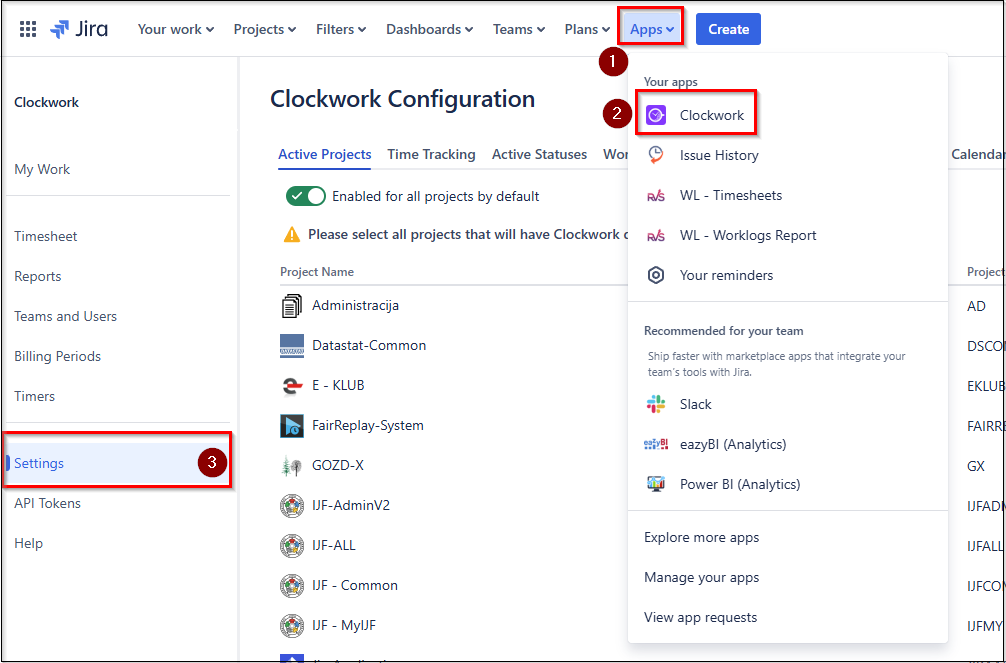
The Tabs will be displayed at the top of the page.

Active projects
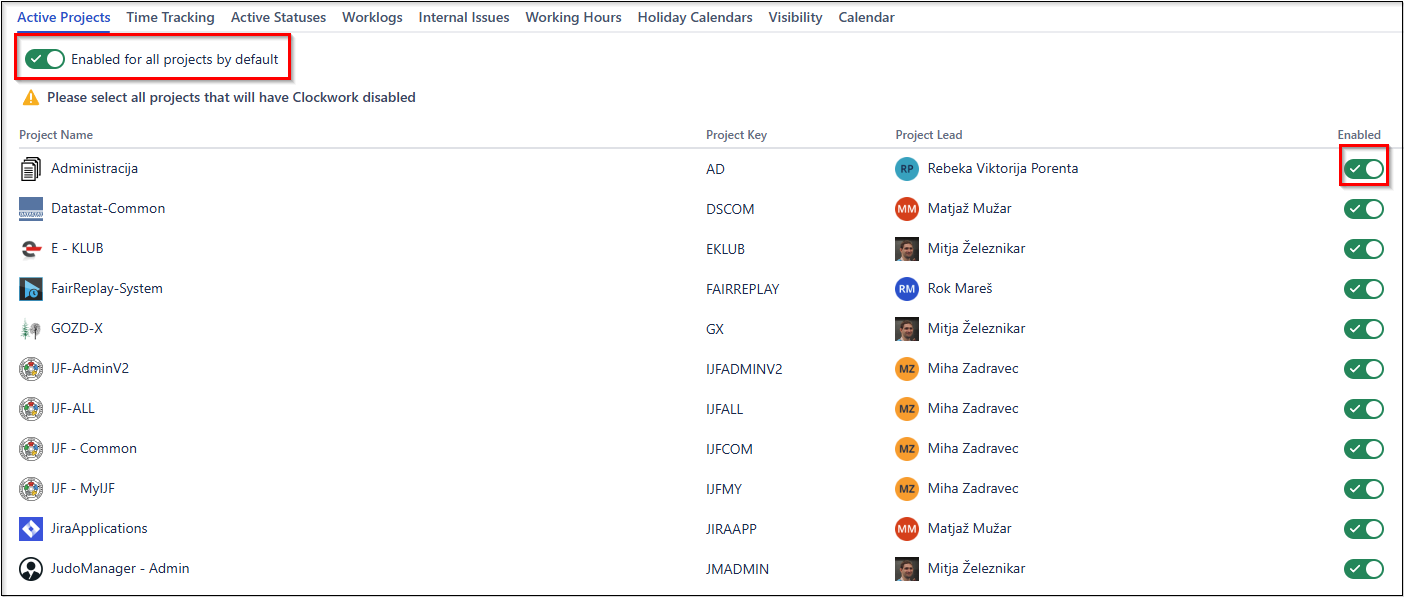
This module allows you to enable the ClockWork PRO application for each project.
By default, ClockWork is enabled for all projects. If you want to disable it for a specific project, use the toggle button on the right.
Time Tracking
In this module, you can configure the following settings:
Tracking mode
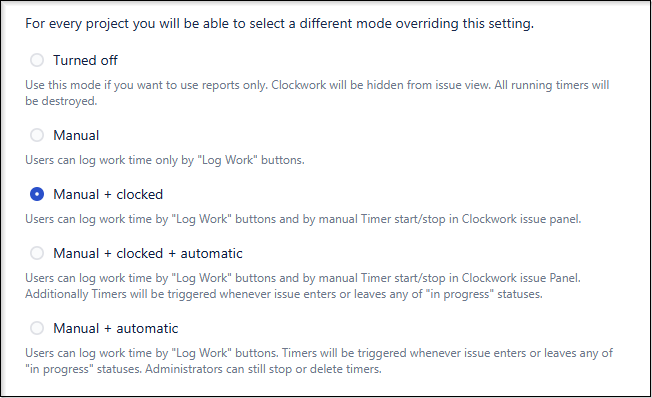
Here, you can set the global tracking mode for all projects.
The current tracking mode is set to: Manual + Clocked, allowing work to be logged through:
- Manual logging
- Using a timer
Timers mode
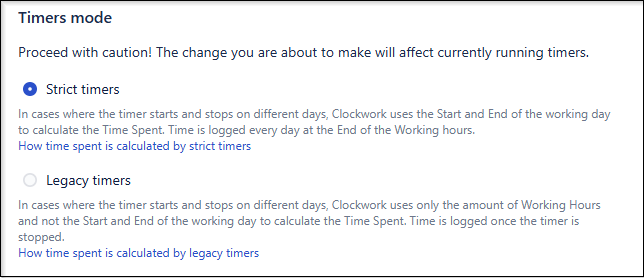
Here, you can configure the timers mode.
The current setting is: Strict Timers, meaning:
- Active Timers Logging is automatically stopped outside of working hours.
- After 17:00, all open Logging timers will log hours to task.
- At 08:00, all open logging timers from last day will start automatically.
Multiple timers
Here, you can configure settings for multiple timers.
The current setting is: Starting a new timer stops all other running timers for the same user, meaning each user can have only one active ClockWork timer at a time.

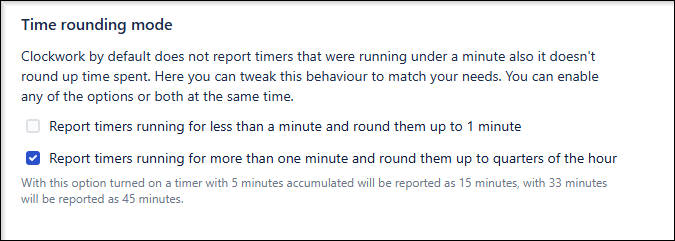
Time Rounding mode
This section allows you to configure time rounding settings.
The current setting is: Report timers running for more than one minute and round them up to the nearest quarter-hour.
For example:
- If a user or automation logs 9 minutes, it will be rounded up to 15 minutes.
- If a user or automation logs 33 minutes, it will be rounded up to 45 minutes.
Issue Types
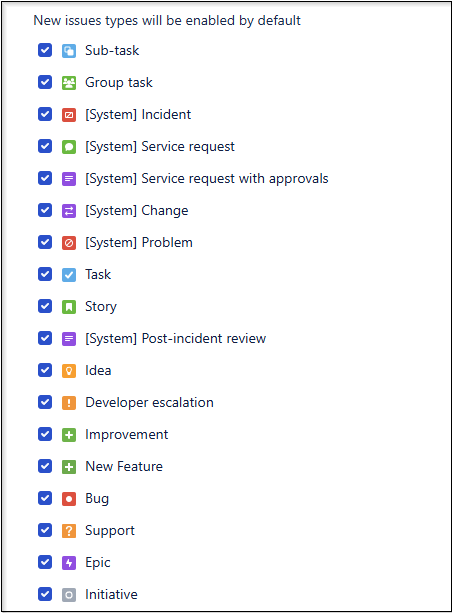
By default, ClockWork is enabled for all issue types. Use the checkboxes to disable ClockWork for specific issue types if needed.
Stop issue timers
ClockWork timers start and stop only for the assigned user, even when moving through the workflow. If another user wants to log time on the issue, they must:
- Manually enter the log
- Start and stop the timer manually

Active statuses
This section allows you to configure Active Statuses.
ClockWork automatically starts logging when an issue enters a project's ACTIVE status and stops logging when it leaves. Here, you must define which Jira Workflow Statuses are considered ACTIVE.
Active statuses can only be edited per project. For details on modifying them, refer to: Project ClockWork Settings - Active statuses.
Worklogs
In this module, you can define Worklog settings, including:
- Worklog Description
- Reporting Time Restrictions
- Worklog Attributes
Worklog description
You can configure whether a description is mandatory when logging time.
Currently, a description is NOT mandatory.

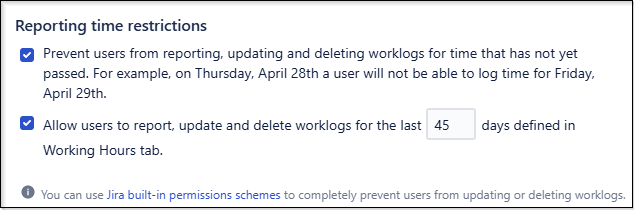
Reporting time restrictions
You can set the following restrictions:
- Prevent users from logging future time entries → ON
- Allow users to log past time entries → ON (up to 45 days)
Worklog Attributes
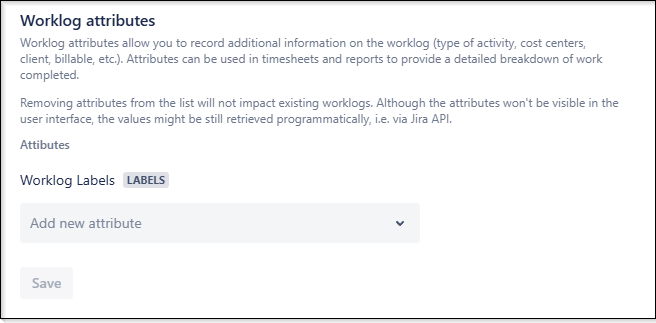
You can add attributes to worklogs, choosing from:
- Checkbox
- Single select
- Labels
Currently, the following attribute has been added:
- Checkbox: BILLABLE
- LABELS
Internal issues
This module allows you to mark certain issues as Internal.
Currently, no issues are marked as Internal.

Working Hours
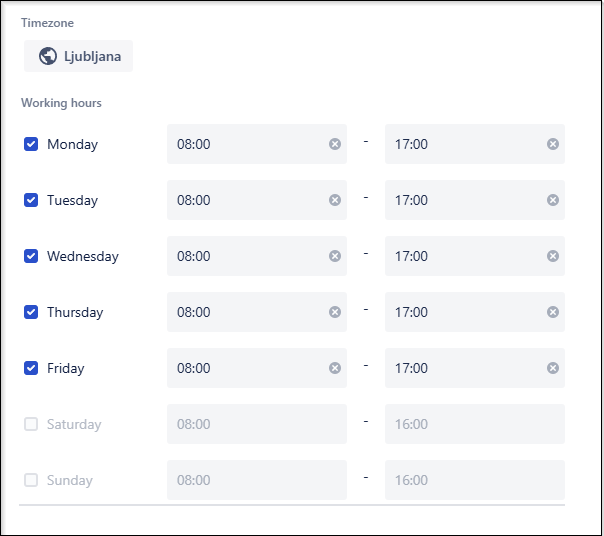
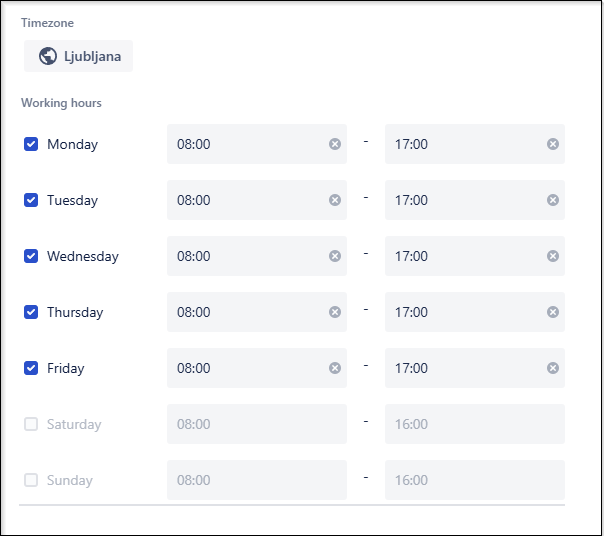
Here, you can define the timezone and working hours per day.
The current settings are:
- Timezone: Ljubljana
- Working Hours: 08:00 - 17:00
Holiday Calendards
You can add holidays to the calendar to prevent time logging on holidays.
Currently, no holidays have been added.

Visibility
This setting allows you to control the visibility of ClockWork logging on different devices:
- Desktop : ON
- Mobile : ON
Calendar
Here, you can configure calendar and date settings:
- First day of the week: Set to Monday
- Date format: Set to DD-MM-YYYY
Project ClockWork Settings
This section allows you to manage ClockWork settings for individual projects. To access Project ClockWork Settings, follow these steps:
Projects -> Select one project -> Project settings -> Apps -> Clockwork
You can configure the following settings for each project:
- Time Tracking
- Active Statuses
- Working Hours
- Holiday Calendars
Project Time Tracking
In Project Time Tracking, you can modify:
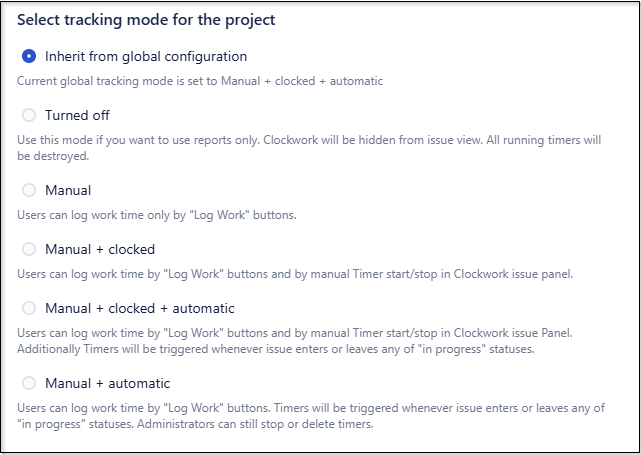
Project Tracking mode
Here you can override the Global settings of Tracking mode
By default: Project Tracking mode = Global Tracking mode
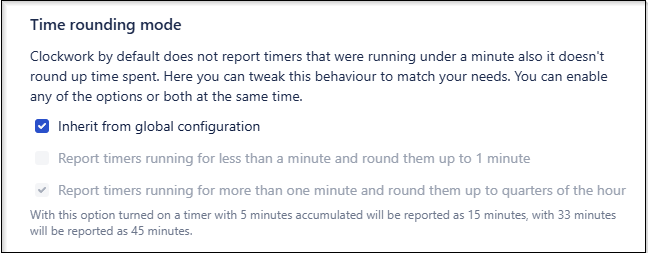
Project Time Rounding mode
Here you can override the Global Time Rounding mode
By default: Project Rounding mode = Global Rounding mode
Project Issue types
Here you can override the Global Issue Types
By default: Project Issue Types = Global Issue Types

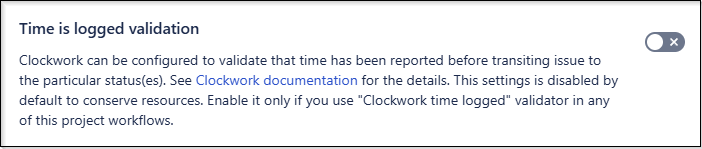
Time is logged validation
This setting validates whether the logged time falls within the hours when the Jira Issue was in an ACTIVE status.
Currently this settings is set to: OFF
Project Active Statuses
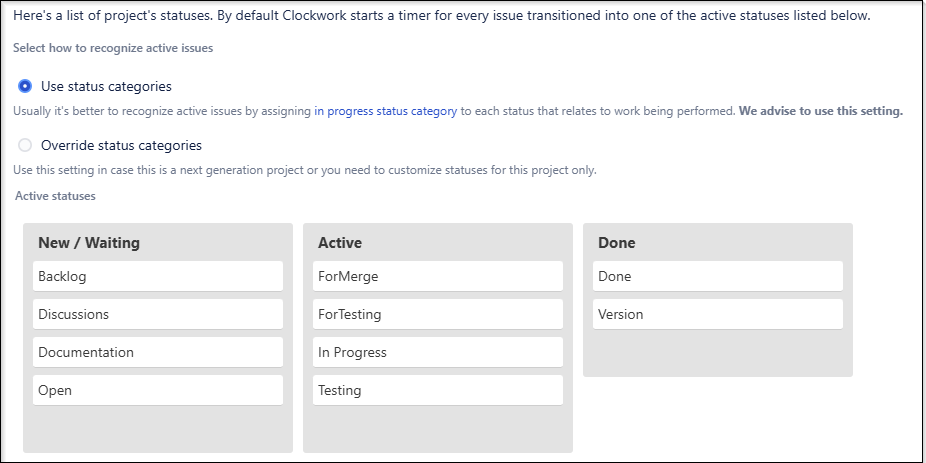
This section allows you to define Active Statuses for individual projects.
The current setting is: Override status categories, meaning that Active Statuses are different from the Global Jira Workflow Settings
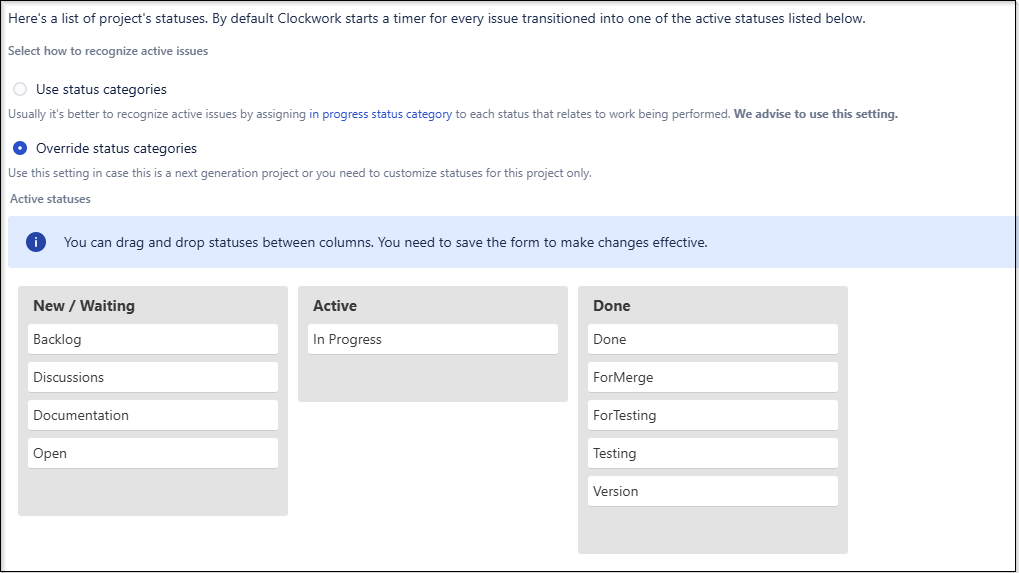
If you choose "Use status categories", the settings will follow the default Jira status categories:
Project Working Hours
Here you can override the Global Working Hours
By default: Project Working Hours = Global Working Hours
Project Holiday Calendars
Here you can override the Global Holiday Calendars
By default: Project Holiday Calendars = Global Holiday Calendars
